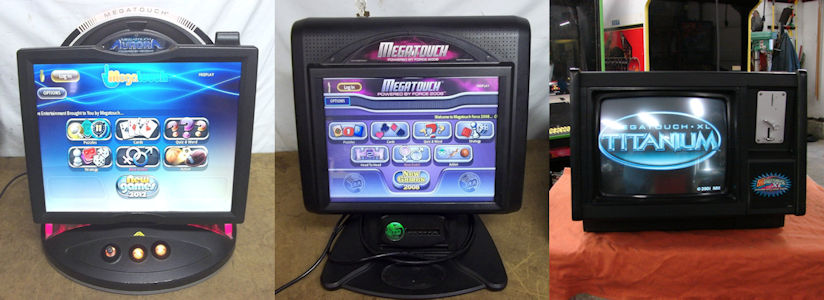
Released: 1/12/2010
File Size: 4 KB
Print Document
Ion 2009.5 & 2010 (versions V31.03, 31.04, 31.06, 31.07, 31.22, V32.03
and V32.04) Router Patch
Download this file and
install it on your game to fix router connection issues. See Field Bulletin 75 Rev A for more information
about the update.
IMPORTANT: This file should only be installed on Ion games running
2009.5 & 2010 (versions V31.03, 31.04, 31.06, 31.07, 31.22, V32.03 or
V32.04) software. This file cannot be installed on any other versions.
To install this file, you
will need:
- a computer with a CD or DVD-ROM burner
- a blank CD or DVD
- a CD or DVD drive
- cabling to connect the CD or DVD-ROM drive to the
game
OR...
- a personal computer with a USB port
- a USB pen - at least 1.5 MB (supported by Megatouch
software)
NOTE: A USB pen kit (part number KAV-100-008-02) is available.
To order, contact your distributor.
DOWNLOAD THE FILE TO YOUR PC
(Windows 95/98/NT/2000/XP Download Instructions)
- Click here to download the file:
Ion 2009.5 &
2010 Router Patch
- Select SAVE. The "SAVE AS"
dialog box is displayed.
- Select a location to save the file and then click SAVE.
BURN THE FILE TO A CD OR DVD, OR COPY THE FILES TO A USB PEN
NOTE:
DO NOT UNZIP THE FILE. COPY THE FILE AS IS.
INSTALL THE FILE ON YOUR GAME
If you are using a
CD or DVD:
For non-Rx systems:
- Turn off the game.
- Unlock and open the game, if necessary, to access the
centronics connector.
- Connect the 2 x 20-pin IDE connector to the interface
connector on the CD or DVD-ROM drive. NOTE: Make sure the red stripe on
the ribbon cable matches up with pin 1 on the IDE interface connector.
- Connect the 4-pin power connector on the ribbon cable
to the DC power input on the CD or DVD-ROM drive.
- Make sure that your CD or DVD-ROM drive is set to
MASTER.
- Connect the centronics connector on the ribbon cable
to the centronics connector on the game.
- Turn on the game.
- Insert the disc into the CD or DVD-ROM drive.
- Turn off the game and turn it back on. The file will
install automatically.
- When the game displays the message Update Complete,
remove the disc from the drive and turn off the game.
- Carefully disconnect the ribbon cable from the
centronics connector on the game.
- If necessary, close and lock the game.
- Turn on the game.
For Rx systems:
- Turn off and unplug the game.
- Unlock and open the game to locate the unconnected
end of the software upgrade power cable, which is routed near the hard
drive.
- Connect the software upgrade power cable to the SATA
power cable input on the back of your SATA DVD drive.
- Connect the SATA data cable (either the one that came
with your external DVD drive, or the provided cable that came with the
game) to the software upgrade data port inside the game.
- Connect the other end of this cable to the SATA data
cable input on the back of your DVD drive.
- Plug in and turn on the game.
- Insert the disc into the SATA DVD drive.
- Turn off the game and turn it back on. The file will
install automatically.
- When the game displays the message Update Complete,
remove the disc from the drive and turn off the game.
- Carefully disconnect the DVD drive. It is recommended
that you keep the provided SATA data cable connected to your DVD drive and
only connect it to the update port inside the game during updates.
- Close and lock the game.
- Turn on the game.
If
you are using a USB pen:
- Turn off the game.
- Insert the USB pen into the USB port on the outside
of the game.
- Turn on the game. The file will install
automatically.
- When the game displays the message Update Complete,
turn off the game.
- Remove the USB pen.
- If necessary, close and lock the game.
- Turn on the game.