Released:6/20/02
File Sizes:
Removing Ad Screens 15.70KB (16077 bytes)
Add Ad Screens 716.52KB (733713 bytes)
Print Document
Adding Advertising Screens to FORCE and MAXX Games
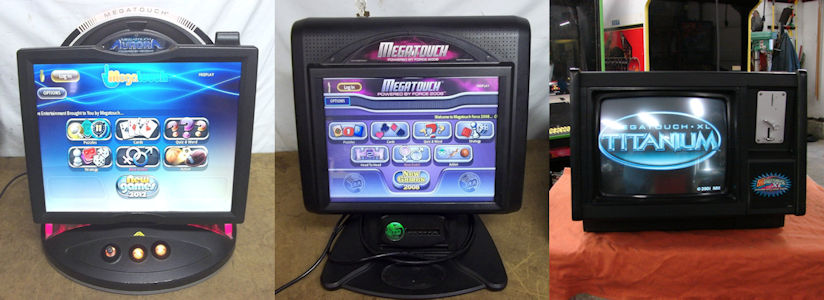
Megatouch FORCE games and games running Emerald Edition software allow you to add 60 advertising screens that
you create on your personal computer in addition to the six screens that can be
created directly on the game using the VIDEO BILLBOARD function. MAXX
games running software prior to Emerald allow for a total of three
advertising screens.
To create and/or delete these new screens, you will need:
- a personal computer with a CD-ROM burner or PCMCIA
card reader (for MAXX games)
- a graphics program that will allow you to create
graphics and save them in 24-bit PCX format
- a blank CD or a PCMCIA card (for MAXX games with
PCMCIA card slots)
- a CD-ROM drive and centronics cable to transfer the graphics to the game (unless you're using a PCMCIA card on a MAXX game)
TO CREATE AD SCREENS
DOWNLOAD THE REQUIRED PROGRAM TO YOUR PC
(Windows 95/98 Download Instructions)
- Open Windows Explorer and select the "C:\" directory.
- Select "File", then "New", then "Folder" from the pull-down menu. Name this new folder "Merit".
- Select the new "Merit" folder.
- Select "File", then "New", then "Folder" from the pull-down menu and name this new subfolder "Add Custom".
- Select the new "Add Custom" folder.
- Select "File", then "New", then "Folder" from the pull-down menu and name this new sub folder "User".
- Click this link NEWADD.EXE to download the program used to add advertising screens to your game.
- Select "SAVE". The "SAVE AS" dialog box is displayed.
- Select the "C:\Merit\Add Custom" folder and click
SAVE.
UNZIP THE FILES YOU DOWNLOADED
(Windows 95/98 Instructions)
- In Windows Explorer, locate the "NEWADD.EXE" file in the "C:\Merit\Add Custom" folder.
- Double-click "NEWADD.EXE". The files needed to create ad screens will be placed in the same "Add Custom" folder.
- Move the six new sample ad screens (1.pcx, 10.pcx,
etc.) into the "User" subfolder.
CREATE THE ADVERTISING SCREENS
(Windows 95/98 Instructions)
NOTE: The advertising screens must be in 24-bit PCX format, 640 x 480 pixels in size. You can use any graphics program that will allow you to
create this type of file, such as Photoshop or Paint Shop Pro. The unzipped files contain six sample files,
which can be used as examples and/or to test your graphics program. When you create your own screens, you must use these file names and overwrite the sample screens.
- Using the graphics program of your choice, create your advertising screens in a 24-bit PCX format, 640 x 480 pixels in size.
- To save the new screens, select SAVE AS from the FILE pull-down menu of your graphics program.
- From the SAVE IN drop-down list, select the "C:\Merit\Add Custom\User" subfolder.
- Choose the "PCX" option in the file type drop down menu to save your file with a ".PCX" extension (you must use this extension for the screens to be displayed) and click SAVE.
You can determine the display time of an ad by its file name. Use the following as a guide.
| File Name | Display Time |
| 1-10.PCX | 10 seconds |
| 11-20.PCX | 20 seconds |
| 21-30.PCX | 30 seconds |
| 31-40.PCX | 40 seconds |
| 41-50.PCX | 50 seconds |
| 51-60.PCX | 60 seconds |
NOTE: MAXX games running Diamond software must use "1.PCX", "2.PCX", and "3.PCX" as ad
screen file names; MAXX games running software prior to Diamond must use "0.PCX", "1.PCX", and "2.PCX" as file names.
Each will be displayed for 10 seconds.
When Windows asks if you want to overwrite any of the
sample files, click YES. Repeat this process for the other
screens.
- If you are not using at least six advertising screens (or three in MAXX games running Diamond or software prior to
Diamond), delete any sample screens that have not been overwritten--otherwise, they will be displayed. If you want to use one of these screens in the future,
resave the file with the same name as the file you deleted.
COPY THE UNZIPPED FILES AND YOUR CREATED SCREENS TO A CD OR PCMCIA CARD
For CD-based games (NOTE: Using a rewriteable CD for the ad screens will eliminate the need for a new disc each time screens are changed):
- Using the CD burning program on your computer, copy the following files under the "C:\Merit\Add Custom" directory to a CD:
- The "User" subfolder
- "Update.dat"
- "Updateme.bat"
(NOTE: Do not copy "NEWADD.EXE".)
Label this disc "Add Custom Ad Screens".
For PCMCIA card-based games:
- Copy the following files under the "C:\Merit\Add Custom" directory to a PCMCIA card:
- The "User" subfolder
- "Update.dat"
- "Updateme.bat"
(NOTE: Do not copy "NEWADD.EXE".)
Label this card "Add Custom Ad Screens".
INSTALL YOUR NEW ADVERTISING SCREENS ON YOUR GAME
For CD-based games:
- Turn off the game on which you want to install the advertising screens.
- Unlock and open the game and access the PC tray.
- Connect the 2 x 20-pin IDE connector to the interface connector on the CD-ROM drive.
NOTE: Make sure the red stripe on the ribbon cable matches up with pin 1 on the IDE interface connector.
- Connect the 4-pin power connector on the ribbon cable to the DC power input on the CD-ROM drive.
- Make sure that your CD-ROM drive is set to MASTER.
- Connect the centronics connector on the ribbon cable to the centronics connector on the game.
- Turn on the game.
- Insert the "Add Custom Ad Screens" CD with your new advertising screens into the CD-ROM drive.
- Turn off the game and turn it back on. The program will run automatically.
- When the program has finished loading the advertising screens and the game finishes its normal boot-up procedure, remove the CD from the drive and turn off the game.
- Carefully disconnect the ribbon cable from the centronics connector on the game.
- Close and lock the game.
- Turn on the game.
For PCMCIA card-based games:
- Turn off the game on which you want to install the advertising screens.
- Unlock and open the game and access the I/O board (mounted above the motherboard).
- Insert the "Add Custom Ad Screens" PCMCIA card with your new advertising screens into one of the PCMCIA card slots on the I/O board.
- Turn on the game. The program will run automatically.
- When the program has finished loading the advertising screens and the game finishes its normal boot-up procedure, turn off the game.
- Remove the PCMCIA card.
- Close and lock the game.
- Turn on the game.
TO DELETE AD SCREENS
DOWNLOAD THE REQUIRED PROGRAM TO YOUR PC
(Windows 95/98 Download Instructions)
- Open Windows Explorer and select the "C:\" directory.
- Select "File", then "New", then "Folder" from the pull-down menu. Name this new folder "Merit".
- Select the new "Merit" folder.
- Select "File", then "New", then "Folder" from the pull-down menu and name this new subfolder "Remove Custom".
- Click this link NEWREMOVE.EXE to download the program used to delete advertising screens from your game.
- Select "SAVE". The "SAVE AS" dialog box is displayed.
- Select the "C:\Merit\Remove Custom" folder and click
SAVE.
UNZIP THE FILES YOU DOWNLOADED
(Windows 95/98 Instructions)
- In Windows Explorer, locate the "NEWREMOVE.EXE" file in the "C:\Merit\Remove Custom" directory.
- Double-click "NEWREMOVE.EXE". The files needed
to delete ad screens will be placed in the same "Remove Custom" directory.
COPY THE UNZIPPED FILES TO A CD OR PCMCIA CARD
For CD-based games (NOTE: Using a rewriteable CD for the ad screens will eliminate the need for a new disc each time screens are changed):
- Copy the following files under the "C:\Merit\Remove Custom" directory onto a CD:
- "Update.dat"
- "Updateme.bat"
(NOTE: Do not copy "NEWREMOVE.EXE".)
Label this disc "Remove Custom Ad Screens".
For PCMCIA card-based games:
- Copy the following files under the "C:\Merit\Remove Custom" directory onto a PCMCIA card.
- "Update.dat"
- "Updateme.bat"
(NOTE: Do not copy "NEWREMOVE.EXE".)
Label this card "Remove Custom Ad Screens".
DELETING YOUR ADVERTISING SCREENS
For CD-based games:
- Turn off the game.
- Unlock and open the game and access the PC tray.
- Connect the 2 x 20-pin IDE connector to the interface connector on the CD-ROM drive.
NOTE: Make sure the red stripe on the ribbon cable matches up with pin 1 on the IDE interface connector.
- Connect the 4-pin power connector on the ribbon cable
to the DC power input on the CD-ROM drive.
- Make sure that your CD-ROM drive is set to MASTER.
- Connect the centronics connector on the ribbon cable
to the centronics connector on the game.
- Turn on the game.
- Insert the "Remove Custom Ad Screens" CD into the
CD-ROM drive.
- Turn off the game and turn it back on. The
program will run automatically.
- When the program has finished deleting the advertising
screens and the game finishes its normal boot-up procedure, remove the CD from
the drive and turn off the game.
- Carefully disconnect the ribbon cable from the
centronics connector on the game.
- Close and lock the game.
- Turn on the game.
For PCMCIA card-based games:
- Turn off the game.
- Unlock and open the game and access the I/O board (mounted above the motherboard).
- Insert the "Remove Custom Ad Screens" PCMCIA card into one of the PCMCIA card slots on the I/O board.
- Turn on the game. The program will run automatically.
- When the program is finished deleting the advertising screens and the game resumes its normal boot-up procedure, turn off the game.
- Remove the PCMCIA card.
- Close and lock the game.
- Turn on the game.
© 2002 Merit Industries, Inc. All Rights Reserved